How to Export Your Character.AI Chats and Delete Your Account
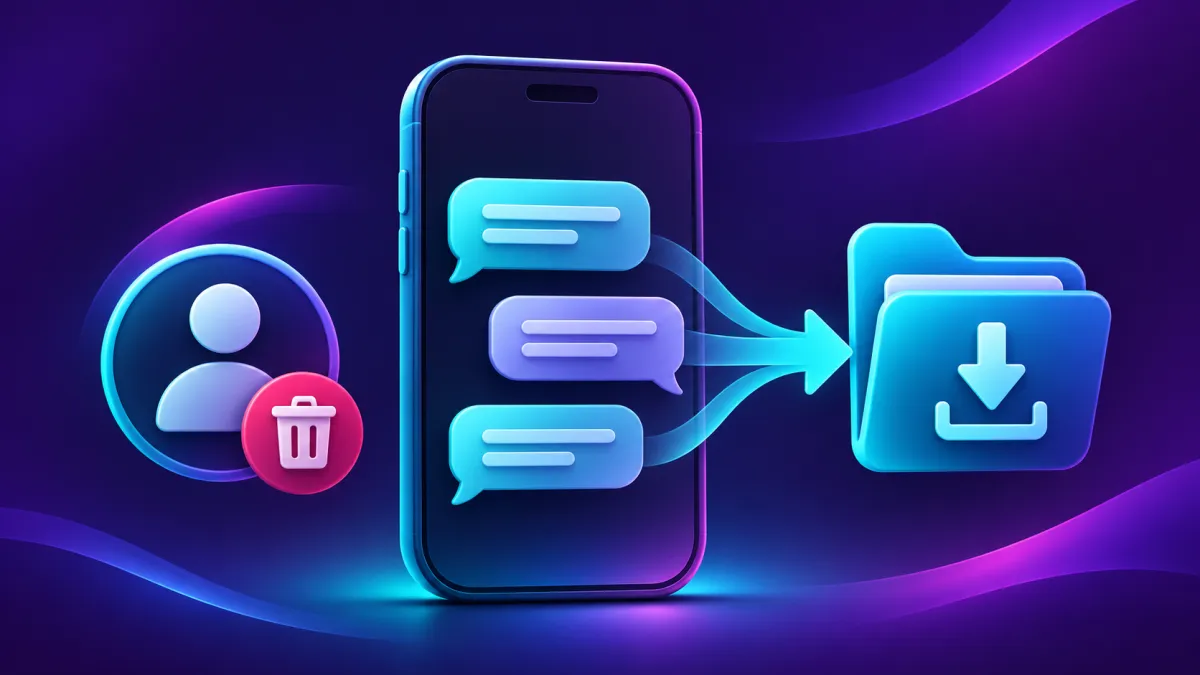
Character.AI puts Export Data and Delete Account in the same area of its website settings. If you want to keep your conversations, start with the export and wait until you have opened the downloaded file. Character.AI says preparing an export can take three to four weeks, and the download link expires seven days after the email is sent.
This guide covers the web and mobile menus, what to check in your archive, and how to close the right account after you have saved what you need. The steps come from Character.AI's own help center. The company can change menu labels, so the web path is a useful fallback if the app looks different.
Before you request your export
Open the account that contains the conversations you want. If you have used both email sign-in and a linked sign-in provider, check the email and profile details on screen. Open a familiar conversation as a second check. Character.AI sends the export to the email address associated with the account, so make sure you can still open that inbox.
Make a short list of what you want to save. It might be a long-running story, the private character you built, or the opening prompt for a chat you want to revisit. If a conversation matters and you can still open it, save a personal copy of the parts you need now. You can check the account export against that list when the link arrives.
How to export Character.AI chats on the web
Use the profile settings on the Character.AI website. The export request lives under account data, so you can submit it from your profile without opening a particular character or conversation.
- Open your profile and select Profile Settings.
- Open Account, then Manage Account & Data.
- Select Export Data and check for the confirmation that an email will follow.
Character.AI describes this as a request for a copy of your account data. The confirmation means the request went in. Keep your sign-in and email access while the service prepares the download. Character.AI's download instructions
How to request the export in the mobile app
In the mobile app, open your profile, tap the settings icon, then choose Legal & Privacy and Export Data. The current help page says a success banner appears after submission. If your version of the app shows different labels, try the web settings with the same account. Mobile export instructions from Character.AI
Check that the profile you see on the web matches the one in the app before placing a request there. An account opened through a different email may have a different chat history. A familiar username and a conversation you recognize can save you weeks of waiting for the wrong archive.
How long the export takes and what to check
Give the request three to four weeks according to Character.AI's published estimate. Watch the account inbox, including spam, and download the archive when the email arrives. The seven-day window starts when the email is sent. A calendar reminder can help if you rarely check the address you used to sign up. Export timing and link expiry
Open the files before you delete your account. Look for a title, character name, or distinctive phrase from one of the chats on your list. For a long conversation, check a section near the beginning and a section near the end. Keep a separate copy of anything still visible in your account if you cannot find it in the export.
- If the email never arrives: confirm the address on the account and the date you requested the export. After the published processing window, contact support with those details.
- If the link expires: return to the export settings to request another copy. Contact support if the option is unavailable or the new request repeatedly fails.
- If you find sensitive details in the files: store the archive somewhere private, such as an encrypted folder you control. Share a redacted excerpt if someone needs to see part of a chat.
For a missing export or download error, describe what happened and include when you submitted the request. The archive itself can contain private writing, so start the support conversation with the error details. Character.AI support request form
How to delete your Character.AI account
Once you have verified your copy, go back to the account settings. Character.AI says account deletion is permanent. If you have a paid c.ai+ subscription, check how it is billed and handle renewal while you can still get to the relevant settings. For web purchases, Character.AI directs users to its customer portal. For mobile purchases, it points to Apple or Google Play subscription settings. Official c.ai+ subscription guide
- Web: open your profile settings, go to the account data management screen, and select Delete Account.
- Mobile: open your profile settings and look for Remove Account, the label used in Character.AI's deletion guide. If it is missing, use the website with the same sign-in.
- Read the confirmation and check the account details one last time before you proceed.
The company documents separate steps for downloading data and closing the account. If you've requested an export and still want the archive, wait for the download and check the contents first. Character.AI's account deletion instructions
If your concern is privacy or model training
An export gives you a copy of account data. Account deletion closes your account. If your specific concern is how your data may be used for model training, Character.AI provides a separate support article for that setting. Check the current regional instructions and contact the privacy team if the relevant option is missing. Character.AI's model training settings
If you need a specific answer about what happens to a category of data after deletion, ask about that category directly. For instance, say whether your question concerns private chats, a character you created, or account records. Keep the confirmation and any reply alongside the date you made the request. Character.AI's privacy and regional disclosures update
Can you export just one chat?
The official procedure covers an account-level export. If you only want one conversation, the faster option is to open the thread and save the passages you need while they are available. Copy the character name and enough context to make the text readable later, especially if you are saving a scene from the middle of a story.
For an account you are about to close, save the one chat first, request the full archive if the rest matters, and close the account after you have checked your files. If you are moving to another companion app, check what it can import before sharing any of that archive. Compare AI roleplay apps on AI Romantics
Related Articles

10 Best AI Girlfriend Apps in 2026 (Tested and Ranked)
I tested 10 AI girlfriend apps for chat, memory, voice, images, and pricing, then ranked the ones worth your time in 202...

Best Free AI Girlfriend Apps in 2026: What You Actually Get Without Paying
We tested the top free AI girlfriend apps in 2026 - real free-tier limits, no-signup picks, NSFW access, and which one t...

Candy AI Alternatives in 2026: 9 Apps That Outperform It on Memory, Free Tier, or Roleplay
Explore 9 top Candy AI alternatives offering better memory, richer free tiers, improved roleplay, and visuals, plus hone...